10 Proven Windows Startup Optimization Tips for a Faster Boot
There is nothing quite like the frustration of waiting for a sluggish computer to boot up when you’re ready to tackle your workday. We live in an era where our smart devices turn on instantly, so sitting around for several minutes while your desktop gets its act together completely breaks your focus and kills your momentum.
If you find yourself staring at a loading screen—or that endless spinning blue circle—it is time to do something about it. By putting the right windows startup optimization tips into practice, you can easily turn an unresponsive machine into a highly efficient workstation.
Throughout this comprehensive guide, we will look at exactly why your PC bogs down during the boot sequence and, more importantly, how to fix it for good. Whether you are a casual user looking for some quick fixes or a DevOps professional who needs deeper system control, these methods will help you significantly speed up your Windows boot times. Let’s dive into the technical causes and actionable solutions so you can finally reclaim your lost time.
Why You Need Windows Startup Optimization Tips
Applying reliable windows startup optimization tips isn’t just about saving a few seconds here and there. It actually helps extend the lifespan of your hardware while improving overall system stability. After all, a slow boot process is rarely an isolated problem. More often than not, it is a glaring symptom of software bloat, inefficient resource allocation, or even failing hardware.
Think about what happens when you press the power button. First, your computer initializes its hardware through the BIOS or UEFI. Once Windows takes the reins, it loads up the system kernel, core drivers, and mandatory background services. However, the biggest bottleneck usually hits during the very last phase: user logon initialization.
This is the stage where third-party apps, update checkers, and scheduled tasks start fighting aggressively for CPU cycles and disk I/O. Many programs intentionally configure themselves to launch automatically, burying entries deep within the Windows Registry or the standard Startup folder. As that auto-starting list grows longer, your processor struggles to keep up with all the simultaneous requests, leaving you with severe lag. Understanding how this behind-the-scenes battle works is your first step toward properly optimizing your Windows boot time.
Quick Fixes and Basic Solutions
Want to fix your slow PC startup issues right now? Start with these accessible, high-impact steps. You definitely do not need to be a system administrator or a networking expert to pull off these basic OS optimizations.
1. Disable Startup Programs via Task Manager
The easiest and arguably safest way to cut down your boot times is to disable startup programs that simply don’t need to run constantly in the background.
- Press Ctrl + Shift + Esc to open the Windows Task Manager.
- Click on the Startup tab (or the Startup apps icon if you are on Windows 11).
- Review the “Startup impact” column to identify which applications are draining resources.
- Right-click unnecessary programs (like game launchers, chat apps, or cloud drives) and select Disable.
2. Enable Fast Startup
Turning on the built-in fast startup Windows 10 feature—which works just as well for fast startup Windows 11—uses a clever hybrid hibernation state to drastically reduce your cold boot times.
- Open the Control Panel and navigate to Power Options.
- Click on Choose what the power buttons do on the left-hand menu.
- Select the shield icon that says Change settings that are currently unavailable.
- Check the box for Turn on fast startup (recommended) and save your changes.
3. Unplug Non-Essential USB Peripherals
While in the Power-On Self-Test (POST) phase, your motherboard actively scans all connected USB devices to check for bootable media. Leaving external hard drives, webcams, or certain USB hubs plugged in can unnecessarily delay this hardware initialization. By simply disconnecting the peripherals you rarely use, you can easily shave vital seconds off the clock.
Advanced Solutions for IT Professionals
If you are a power user, developer, or an engineer running advanced HomeLab environments, basic graphical tweaks probably won’t cut it. For those needing more control, here are a few advanced technical methods to streamline your system infrastructure.
4. Deep Clean with Sysinternals Autoruns
Task Manager is great, but it only displays a tiny fraction of what actually starts up with Windows. Microsoft’s Sysinternals Autoruns tool, on the other hand, gives you a granular, comprehensive look at every registry key, scheduled task, and Explorer extension that executes during boot.
To get started, run Autoruns as an administrator. You will notice it intelligently categorizes auto-start items into tabs like Logon, Explorer, and Services. From there, you can uncheck the boxes for third-party updaters, leftover orphaned registry entries, and unnecessary shell context menus. Just be cautious: always hide the Microsoft entries first so you don’t accidentally disable any critical system components.
5. Measure Boot Time with Windows Event Viewer
It is incredibly hard to manage what you can’t measure. Luckily, Windows quietly logs your exact boot times and even identifies the specific applications causing delays.
Open up the Event Viewer and navigate to Applications and Services Logs > Microsoft > Windows > Diagnostics-Performance > Operational. You will want to look for Event ID 100, which shows your total boot duration in milliseconds. Meanwhile, Event IDs ranging from 101 to 110 will explicitly list the apps and drivers that are dragging down your boot performance, making it much easier to target the exact bottleneck.
6. Optimize Background Windows Services
Without you even realizing it, many software packages secretly install background services that run continuously. These sneaky additions eat up valuable RAM and CPU time before your desktop even finishes rendering.
To fix this, press Win + R, type services.msc, and hit Enter. Once the window opens, sort the long list by “Startup Type.” Keep an eye out for third-party services—like Adobe Acrobat Update Service or Google Updater—that are set to “Automatic.” Right-click them, open Properties, and change that startup type to “Manual” or “Automatic (Delayed Start).” The delayed start option is incredibly useful because it forces the service to wait its turn until Windows has finished prioritizing core networking and your user interface.
7. Adjust UEFI/BIOS Settings for Ultra Fast Boot
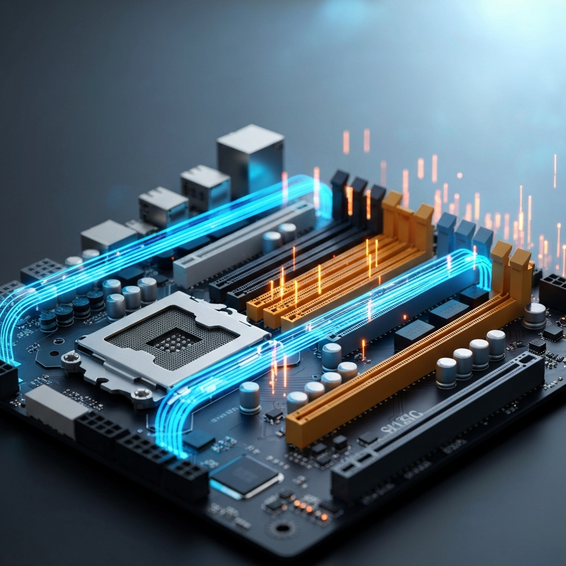
Motherboard initialization naturally adds some unavoidable overhead to your boot duration. To speed this up, reboot your machine and press the designated key (usually DEL, F2, or F12) to enter your UEFI/BIOS settings.
Once you are in, navigate to the boot configuration menu and look for a “Fast Boot” or “Ultra Fast Boot” toggle. Enabling this tells your motherboard to bypass extensive RAM diagnostic tests and older legacy hardware checks. On top of that, make sure your Compatibility Support Module (CSM) is disabled. This forces a pure UEFI boot, which is fundamentally faster than relying on legacy BIOS modes.
Best Practices for Long-Term Performance
Keeping your computer lightning-fast requires a bit of ongoing diligence and good system hygiene. By building solid IT habits now, you can ensure your boot times remain consistently low long after your initial optimization session.
For starters, try to regularly audit your installed software. If you’re no longer actively using an application, completely remove it using a specialized uninstaller. Taking this proactive step prevents orphaned background services and annoying registry bloat from silently creeping back into your startup sequence over time.
Next, take a hard look at your physical hardware to make sure it meets modern standards. If your operating system is still sitting on a spinning mechanical hard drive (HDD), migrating it to an NVMe Solid State Drive (SSD) is quite literally the most impactful upgrade you can make. The massive jump in random read/write speeds will permanently eliminate any disk-related boot bottlenecks. Additionally, try to keep at least 20% of your OS drive completely empty so you have plenty of room for hibernation files and virtual memory paging.
Looking to go a little further? Be sure to explore our extensive Windows guides for more deep-dive technical tutorials that will keep your infrastructure running at peak efficiency.
Recommended Tools and Resources
To help you pull off these system optimizations safely and efficiently, consider checking out a few tools highly recommended by seasoned IT professionals:
- Microsoft Sysinternals Suite: An absolutely essential, free toolkit for advanced troubleshooting, process monitoring, and managing complex auto-starting locations.
- Samsung 990 PRO NVMe M.2 SSD: Because upgrading your boot drive is so critical, this is a top-tier choice. (Check prices on Amazon – Affiliate Link)
- Macrium Reflect: Always generate a full, verified system image backup before you start modifying advanced registry keys or critical UEFI boot settings.
Frequently Asked Questions
Does disabling startup programs improve performance?
Yes, absolutely. By halting non-essential applications, you instantly reduce CPU load, disk thrashing, and memory consumption during that highly critical boot phase. This directly translates to faster login times, less heat generation, and a much more responsive desktop environment from the second you log in.
Is Windows Fast Startup bad for my SSD?
It is true that the Fast Startup feature intentionally writes large hibernation data files to your SSD every time you shut down. However, modern solid-state drives possess incredibly high Terabytes Written (TBW) endurance ratings. For the average user, the actual impact on the drive’s overall lifespan is completely negligible.
Why does my PC take so long to boot even with an SSD?
If you are running a blazing-fast NVMe SSD but still experiencing frustratingly slow boot times, the issue is almost certainly software-related. Heavy background security services, hidden malware infections, corrupted core system files, or conflicting hardware drivers can easily bottleneck even the quickest storage drives on the market.
Should I use a registry cleaner to speed up my boot time?
No. In fact, IT professionals strongly advise against using automated third-party “registry cleaners.” These aggressive tools frequently do much more harm than good by accidentally deleting necessary application keys. That can quickly lead to software crashes or, worse, an unbootable system. You are much better off sticking to manual audits and native Windows utilities.
Conclusion
At the end of the day, optimizing your computer’s boot sequence doesn’t have to be an overwhelming or intimidating task. Once you understand exactly how your operating system handles user initialization and hardware handoffs, you can confidently strip away the unnecessary bloatware and resource-hogging services holding you back.
Start out with the accessible basics: prune your Task Manager list and make sure native hibernation features are enabled. From there, you can step up to advanced administrative tools to audit your registry locations, delay non-critical services, and streamline your motherboard’s POST process.
By consistently applying these windows startup optimization tips, you ensure your hardware stays responsive and is always ready when you are. There is no reason to waste valuable time staring at spinning loading screens. Bookmark this guide, run a routine startup audit every few months, and get back to maximizing your daily productivity.
About the Author