Best Windows Performance Tweaks: The Ultimate Technical Guide
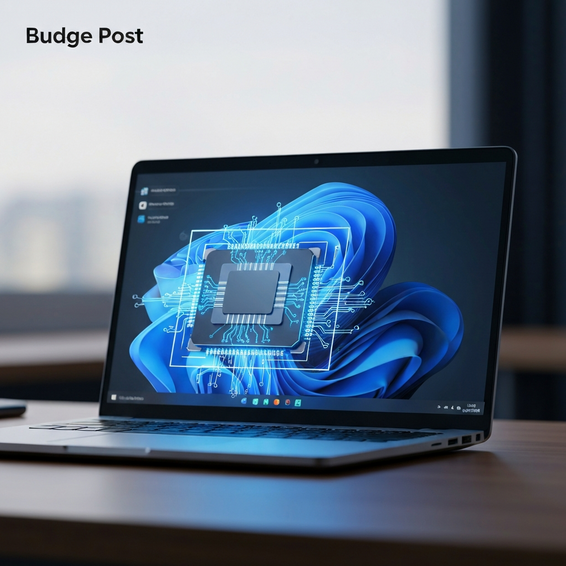
If you’re tired of your PC lagging during an important development workflow, a heavy gaming session, or a long compilation, you aren’t alone. Uncovering the best Windows performance tweaks is a great way to reclaim your computer’s speed, responsiveness, and overall efficiency.
Right out of the box, Windows comes loaded with unnecessary background services, telemetry processes, and visual effects. While they might look nice or help Microsoft gather data, these default settings eat up valuable CPU cycles and RAM. That leaves you with less processing power for the apps you actually want to use.
Below, we’ll walk through everything from quick, five-minute fixes to more advanced, developer-level optimizations. Whether you’re managing a robust local HomeLab environment or just need top-tier performance for resource-heavy workloads, these proven adjustments will give your machine a serious boost.
Why Windows Performance Degradation Happens
Even the latest, most expensive hardware can feel sluggish if the operating system running it isn’t properly tuned. When Windows performance starts to degrade, the root cause usually boils down to inefficient resource allocation.
By design, Microsoft configures Windows to work for the widest possible audience. To achieve this, the OS enables features like aggressive file indexing, constant background app refreshing, and continuous data collection (telemetry). Add in the fact that third-party software installations often sneak in hidden startup tasks and persistent helper services, and the problem quickly compounds.
When dozens of background processes fight for CPU time, memory, and network bandwidth all at once, your system is bound to suffer from random latency spikes. By applying the right performance tweaks, we can remove these bottlenecks for good and hand those system resources back to your primary tasks.
Quick Fixes: Basic Windows Performance Tweaks
Before jumping into the registry or group policy, it makes sense to start with the fundamentals. These quick fixes take just a few minutes to apply, yet they offer a very noticeable boost to your PC’s day-to-day performance.
1. Disable Unnecessary Startup Programs
Whenever you install new software, it frequently sets up a background agent that launches alongside your operating system. Disabling these hidden programs is one of the simplest ways to speed up your boot times and free up idle memory.
- Press
Ctrl + Shift + Escto open the Task Manager. - Navigate to the Startup apps tab (the icon that looks like a speedometer).
- Right-click on any non-essential application—like a game launcher, chat app, or cloud drive—and click Disable.
2. Enable the Ultimate Performance Power Plan
By default, Windows uses a “Balanced” power plan that aims to save energy, sometimes at the expense of processing speed. If you’re using a desktop PC or a laptop that stays plugged into the wall, switching to a high-performance profile is a smart move.
- Open the Windows Start Menu and type CMD.
- Right-click Command Prompt and select Run as administrator.
- Paste the following command:
powercfg -duplicatescheme e9a42b02-d5df-448d-aa00-03f14749eb61and press Enter. - Open the Control Panel, head to Power Options, and choose the newly unlocked Ultimate Performance plan.
3. Turn Off Cosmetic Visual Effects
Modern versions of Windows feature UI animations, drop shadows, and transparency effects that constantly chew through GPU and CPU resources. Turning them off will make your user interface feel significantly snappier.
- Press
Win + R, typesysdm.cpl, and hit Enter to pull up System Properties. - Go to the Advanced tab and click Settings within the Performance section.
- Select the Adjust for best performance radio button, but make sure to check “Smooth edges of screen fonts” so your text stays easy to read.
Advanced Solutions for Power Users
For IT professionals, DevOps engineers, and serious PC enthusiasts, adjusting basic UI settings rarely cuts it. The following advanced tweaks dig a bit deeper into your Windows registry and group policy configurations.
Disable Windows Telemetry and Data Collection
Both Windows 10 and 11 are constantly sending diagnostic data back to Microsoft’s servers. Because this process ties up network bandwidth and background processing power, it’s worth turning off via the Group Policy Editor.
- Press
Win + R, typegpedit.msc, and press Enter. - Follow this path: Computer Configuration > Administrative Templates > Windows Components > Data Collection and Preview Builds.
- Double-click on the Allow Diagnostic Data policy.
- Change the setting to Disabled, click Apply, and then restart your computer.
Optimize Virtual Memory (Pagefile)
If your daily workload involves running virtual machines, Docker containers, or massive databases, you probably max out your physical RAM quite a bit. When that happens, Windows leans on your storage drive for virtual memory. Configuring your pagefile properly can prevent intense system stuttering.
- Open the Performance Options menu again by typing
sysdm.cplin the Run dialog. - Navigate to the Advanced tab and click Change under the Virtual memory section.
- Uncheck the box that says “Automatically manage paging file size for all drives.”
- Select your fastest NVMe SSD, pick Custom size, and set both the initial and maximum sizes to exactly 1.5 times your total physical RAM (calculated in Megabytes).
Debloat Windows Using PowerShell
Pre-installed bloatware is frustrating because it wastes valuable storage space and eats up background CPU cycles. Rather than manually hunting down and uninstalling dozens of fragmented apps, you can run an automated PowerShell debloat script.
Running a trusted, open-source community debloat script via an elevated PowerShell window can easily strip out unnecessary features. This is a great way to remove things like Cortana, the Xbox Game Bar, and redundant OEM sponsor software in one go. Just remember to carefully review any script on GitHub before running it to ensure it won’t impact your system’s stability.
Best Practices for Long-Term System Performance
Applying these performance tweaks is really only half the battle. If you want to maintain an optimized system, you need to develop consistent digital hygiene habits over the long haul.
- Avoid Registry Cleaners: Tools that promise to “clean up” your registry tend to cause a lot more harm than good. They often delete vital core keys, which can lead to broken software links and a highly unstable operating system.
- Automate Maintenance Tasks: Take advantage of the Windows Task Scheduler to put your basic maintenance on autopilot. For instance, you can set up simple scripts to run
sfc /scannowand clear out temporary system files on a weekly basis. - Keep Device Drivers Updated: Running outdated GPU, networking, or chipset drivers is a common recipe for severe latency issues. You should always try to update your drivers directly from the official manufacturer’s website instead of relying entirely on generic Windows Updates.
- Manage Browser Extensions: It’s no secret that modern web browsers use a massive amount of memory. Try to limit your extensions to just the essentials, and take full advantage of built-in features like “Sleeping Tabs” in Microsoft Edge or Chrome’s Memory Saver.
Recommended Tools and Resources
If you’d rather use automated solutions instead of clicking through tedious manual configurations, there are several trusted developer tools that can help optimize your PC safely.
- O&O ShutUp10++: A lightweight, free tool with a simple graphical interface. It allows you to quickly disable Windows telemetry, invasive tracking, and forced automatic updates.
- Chris Titus Tech Windows Utility: An open-source PowerShell toolkit designed by an IT expert that gets a lot of praise in the tech community. It lets you reliably install essential software and apply proven system tweaks with just a single click.
- Microsoft Sysinternals: Specifically, tools like Autoruns and Process Explorer. These applications offer a granular, developer-level look at exactly what is running on your machine at any given second.
Pro Tip: Always create a System Restore point before running any automated optimization software. This guarantees you have an easy rollback option if something goes wrong.
Frequently Asked Questions (FAQ)
Do Windows performance tweaks actually work?
Yes, they absolutely do. Even though modern hardware is incredibly fast out of the box, actively disabling telemetry, visual bloat, and aggressive startup apps frees up real CPU cycles and RAM. This translates directly to fewer latency spikes, smoother framerates while gaming, and much lower background resource usage.
Will these tweaks damage my operating system?
The manual adjustments covered in this guide—like managing startup apps, changing power plans, and turning off visual effects—are completely safe. They are official features built right into the Windows ecosystem. That said, you should always exercise caution when editing the registry or executing third-party PowerShell scripts.
Does disabling Windows search indexing improve speed?
Turning off the Windows Search service can noticeably reduce disk usage, especially if you’re running an older SATA SSD or a mechanical hard drive. The downside is that completely disabling it will break your Start Menu search. A much better alternative is to rebuild your search index and restrict it so it only scans the Start Menu and specific document folders.
How often should I optimize my PC?
It’s a good idea to review your startup apps and background processes about once a month. Also, keep in mind that major Windows feature updates frequently reset custom privacy settings and re-enable telemetry. Because of this, it’s smart to double-check your configurations on a quarterly basis.
Conclusion
Optimizing your operating system doesn’t have to be overwhelming or intimidating. By taking advantage of the best Windows performance tweaks we’ve covered, you can easily turn a sluggish, unresponsive PC back into a highly capable machine.
Start your optimization routine with the quick fixes. Disable heavy startup apps, switch over to the Ultimate Performance power plan, and turn off unnecessary visual effects. Once you feel comfortable with those basics, you can move on to the more advanced solutions like blocking telemetry and managing your virtual memory.
Whether you’re a full-stack software developer, a systems engineer, or just a PC enthusiast, taking back control of your hardware resources will noticeably improve your daily computing experience. Implement these steps today, and enjoy a faster, cleaner, and far more responsive Windows environment.
About the Author